Documentation Index

Fetch the complete documentation index at: https://coinstats.app/docs/llms.txt

Use this file to discover all available pages before exploring further.

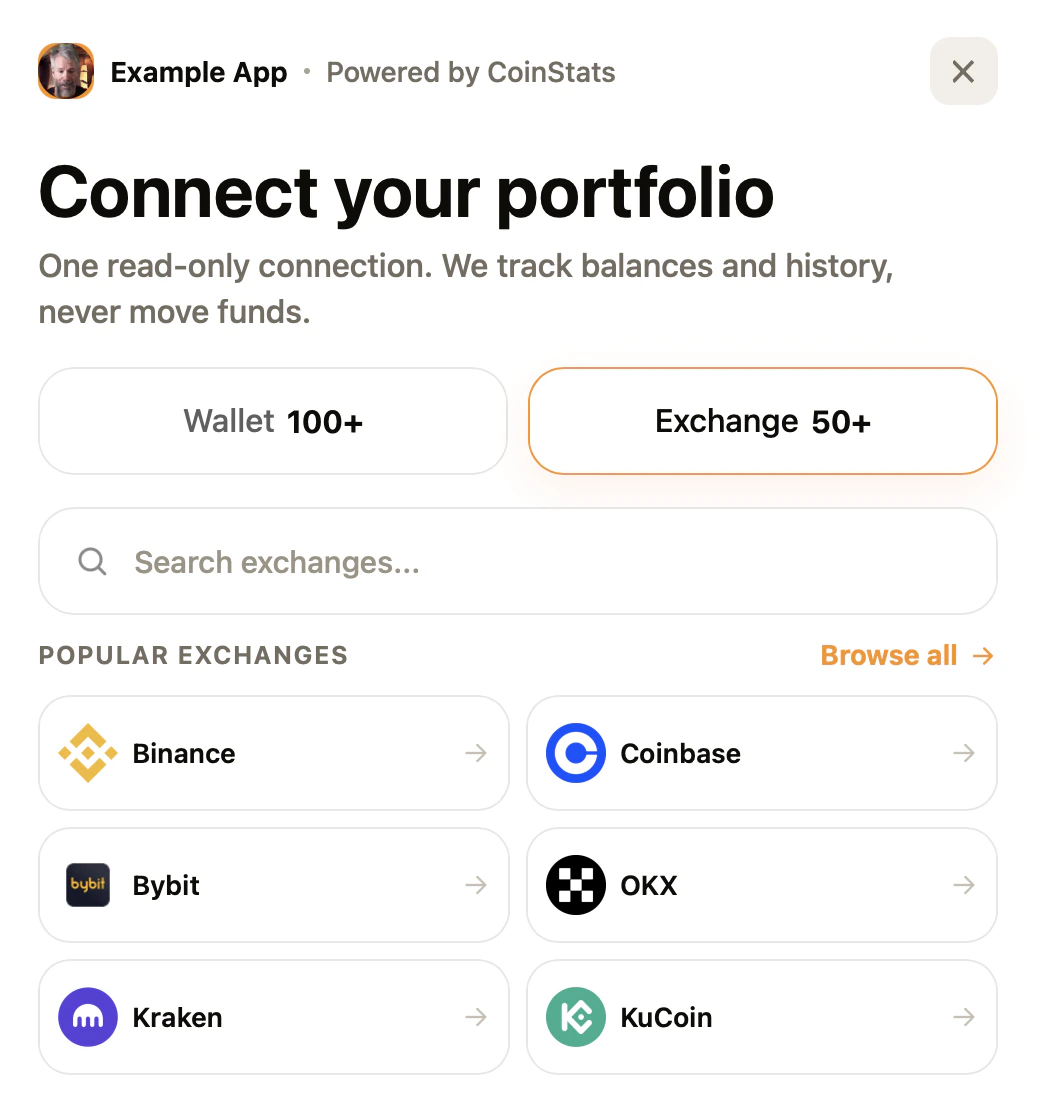
ConnectKit hosted popup example
ConnectKit lets your app send users into a branded CoinStats-hosted popup to connect wallets or exchanges. Your API key stays on CoinStats servers. Your frontend only uses the public ConnectKit ID, redirect URL, and your own state value.

What value this gives

  • Add wallet and exchange connection to your product without building exchange credential forms yourself.
  • Keep API keys out of browser code. The ConnectKit ID is public; the API key remains server-side.
  • Receive a portfolioId, connectionId, and your original state when the connection finishes.
  • Control which domains can open ConnectKit with allowed origins and redirect URLs.

Example values

Use values like these while testing the flow:
FieldExample valueWhere it is used
NameExample App PortfolioInternal dashboard name
Company nameExample AppDisplayed inside the hosted popup
Allowed originhttps://app.example.comThe browser origin allowed to open ConnectKit
Redirect URLhttps://app.example.com/coinstats/callbackWhere CoinStats sends the user after connection
ConnectKit IDpcw_3d349bd92f0c99a219Public ID used by your frontend
Stateuser_12345Your user/session reference returned with the result

Set up ConnectKit

1

Open ConnectKit settings

Go to the API dashboard, open ConnectKit, and click Add.
2

Add the trusted values

Fill in the fields that define where ConnectKit can run and how it appears to users:
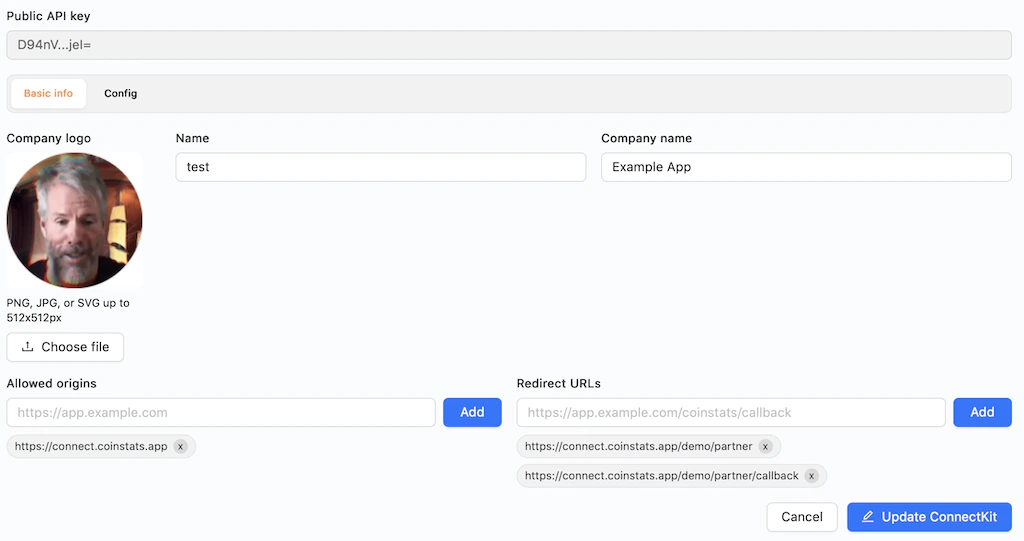
  • Company logo: Upload the logo shown in the hosted connection popup.
  • Name: Add an internal name for this setup, such as test or prod_app.
  • Company name: Add the app or brand name users will see, such as Example App.
  • Allowed origins: Add every browser origin allowed to open ConnectKit.
  • Redirect URLs: Add the exact callback URLs CoinStats can return to after connection, one per environment.
  • Config: Choose the default mode, appearance, and accent color if you want defaults different from the SDK call.
Create ConnectKit form screenshot
3

Copy the ID

After saving, copy the ID from the list. This ID is safe to use in browser code.

ConnectKit list screenshot
4

Open the hosted popup

Use the npm package or hosted script to open the popup from your app. The popup runs on connect.coinstats.app.

NPM integration

Install the SDK:
npm install @coinstats/connectkit
Open the popup from browser code:
import { openCoinStatsConnect } from '@coinstats/connectkit';

openCoinStatsConnect({
  id: 'pcw_3d349bd92f0c99a219',
  redirectUri: 'https://app.example.com/coinstats/callback',
  state: 'user_12345',
  mode: 'both',
  appearance: 'light',
  accentColor: '#F7931A',
  onSuccess(result) {
    console.log('Connected portfolio', result.portfolioId);
  },
  onError(error) {
    console.error(error.message);
  },
  onClose() {
    console.log('User closed the popup');
  },
});

Script tag integration

For plain HTML pages, load the hosted browser bundle:
<script src="https://connect.coinstats.app/coinstats-connect.js"></script>
<script>
  window.openCoinStatsConnect({
    id: 'pcw_3d349bd92f0c99a219',
    redirectUri: 'https://app.example.com/coinstats/callback',
    state: 'user_12345',
    mode: 'both',
    appearance: 'light',
    accentColor: '#F7931A',
    onSuccess: function (result) {
      console.log('Connected portfolio', result.portfolioId);
    },
  });
</script>

Handle the result

When the user finishes, match the returned state with the user or session that started the flow. Store the returned portfolioId or connectionId on your side. Example redirect:
GET /coinstats/callback
  ?status=success
  &portfolioId=portfolio_abc123
  &connectionId=binance
  &state=user_12345
Example popup callback result:
{
  "status": "success",
  "portfolioId": "portfolio_abc123",
  "connectionId": "binance",
  "state": "user_12345"
}

Before going live

  • Add every production origin that can open the popup.
  • Use HTTPS redirect URLs in production.
  • Generate and keep the API key in the CoinStats API dashboard.
  • Store the returned portfolio or connection ID with your user.
  • Keep API keys server-side. The frontend only needs the ConnectKit ID.